Dropp for WooCommerce
Seamlessly integrate your shipping with Dropp for delivery in Iceland using this WordPress plugin. Requires a Dropp account. Sign up here.
5.0
(1 ratings)Will this break my store?
What the WordPress.org registry says about keeping Dropp for WooCommerce running.
Tested to 6.9.7 — 2 branches behind 7.1
A branch or two behind — normal for a plugin between releases.5 months ago
At least 6.8 releases a year since launch. WordPress.org only lists versions still available for download, so the real number may be higher.8.1
Your host must be running at least this version.5.2
woocommerce
These must be installed and active first.1
A single maintainer. Worth knowing if the plugin is load-bearing for your store.Maintenance & trust
Scored on how Dropp for WooCommerce is looked after — not on how many stores run it.
Maintenance
35 / 35WordPress compatibility
14 / 20Support responsiveness
Not enough dataMerchant satisfaction
10 / 15Listing transparency
6 / 10Ratings
5.0
1 ratingSeamlessly integrate your shipping with Dropp for delivery in Iceland using this WordPress plugin. Requires a Dropp account. Sign up here.
Configuration
Adding the shipping method to a shipping zone
- Navigate to WooCommerce → Settings → Shipping
- Choose a zone where you want to enable Dropp. If you need help with WooCommerce zones, check out this guide here.
- Click on Add shipping method
- In the dropdown menu, select Dropp, then click Add shipping method in the modal.
- Click on the added shipping method to set the name and price.
Connect to the Dropp.is API for booking
- Navigate to WooCommerce → Settings → Shipping → Dropp
- Fill in your API key and Store ID
- Click the Save changes button
Booking
Bulk booking
On the orders view in the admin panel you can select all the orders you want to book by checking the checkbox to the left of the order. Next select “Dropp – Book orders” in the Bulk Actions dropdown menu and click the Apply button. Only orders that have 0 in the Dropp column will be booked using bulk booking. After the orders have been booked you will be given a link to download the labels for the selected orders. If an order for some reason could not be booked then you will have to book those individually. The number in the Dropp column in the orders table indicate how many times an order has been successfully booked.
Individual booking
On the order screen there is a new meta box for Dropp booking. An order can be shipped to multiple locations or have multiple consignments sent to the same location. Click on the Add shipment button to add additional shipments.
For each shipment you can select which products should be sent and the quantity of each product. When you are ready to book, click the Book now button.
When an order has the status Initial it can be updated or cancelled.
Enabling Dropp for orders that has a different shipping method
If the order does not have a dropp shipping method attached to one of the order lines then dropp booking will not be available. To enable it simply add a new shipping line to the order and edit it to use dropp shipping. If an order cannot be edited then try to change the order status to pending first.
Yes, provided that the checkout widget is on the WooCommerce checkout page. If you have multiple pages using the checkout widget then it will not work.
In most cases yes, but we cannot guarantee compatability with every plugin.
If you experience any problems using this plugin alongside another plugin then please create a support ticket.
Categories
Plugin details
Tags on WordPress.org
Alternatives
Other plugins in the same categories.
Weight Based Shipping Table Rate for WooCommerce – Flexible Shipping

Weight Based Shipping for WooCommerce

Free Shipping Label and Progress Bar for WooCommerce
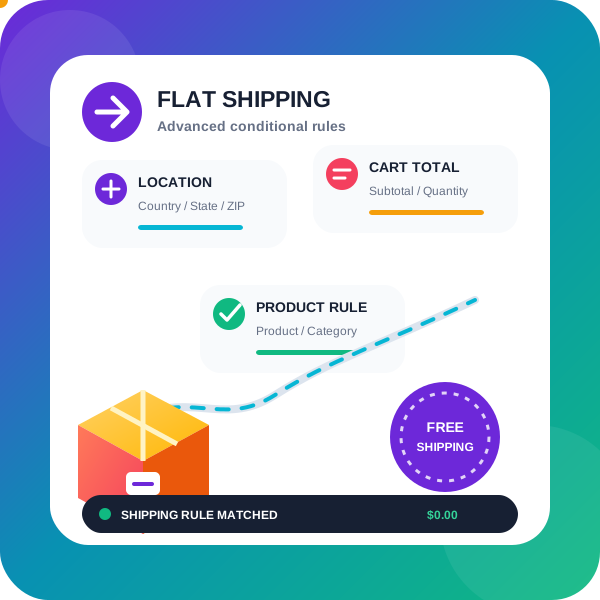
PiWeb Advanced Flat rate / Conditional shipping for WooCommerce

Advanced Shipping Rates for WooCommerce: Flexible Table Rate Shipping Rules