
Show only lowest prices in variable products for WooCommerce
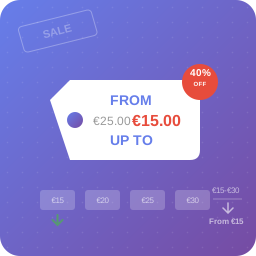
Show only the lowest price instead of confusing price ranges in variable products, with your own price prefix and suffix text.
4.8
(28 ratings)Will this break my store?
What the WordPress.org registry says about keeping Show only lowest prices in variable products for WooCommerce running.
Tested to 7.1.3
Tested against the WordPress branch in use today.5 days ago
At least 2.1 releases a year since launch. WordPress.org only lists versions still available for download, so the real number may be higher.7.4
Your host must be running at least this version.5.0
woocommerce
These must be installed and active first.2
Maintenance & trust
Scored on how Show only lowest prices in variable products for WooCommerce is looked after — not on how many stores run it.
97
out of 100Maintenance
35 / 35WordPress compatibility
20 / 20Support responsiveness
Not enough dataMerchant satisfaction
13 / 15Listing transparency
10 / 10Ratings
4.8
28 ratingsTransform your store’s pricing display and boost conversions by showing only what matters most to your customers: the lowest available price.
Instead of showing confusing price ranges like “$10 – $50” that can overwhelm and confuse customers, this plugin displays clean, simple pricing that encourages purchases. You decide the price prefix (“From”, “Starting at”, or whatever you want), the suffix after the price, and whether the price shown is the lowest, the highest or both.
Key Features:
* Pick what to show – Lowest price (“From $40”), highest price (“Up to $60”), both with text (“From $40 up to $60”) or both with a separator (“$40 – $60”)
* Your own price prefix – Replace “From” with any text you want, with a separate prefix for the highest price so each one translates on its own
* Your own price suffix – Text after the amount, for units or recurrences like “/ month” or “per person”
* Sales stay visible – The regular price is kept crossed out next to the sale price, so discounts are not lost in shop and archive pages
* Discount badge – Optionally show the discount percentage next to the price
* EU Omnibus friendly – With Scheduled Sales, Discounts and Omnibus Price History for WooCommerce, the discount badge is calculated on the prior price of the last 30 days, and by default the crossed out price is that prior price
* Out of stock aware – Leave sold out variations out of the calculation, so the price you advertise is one your customers can actually buy
* Where it applies – Everywhere, shop and archives only, or product pages only
* Smart prefix – Hide it automatically when every variation costs the same
* Live preview – See exactly how your price will read while you set it up, without saving or leaving the settings page
* Yours to style and extend – Custom CSS class for the price, plus a filter to add your own information next to it
* No performance impact – Lightweight and efficient, reusing the price data WooCommerce already caches
* Translation ready and fully compatible with WooCommerce and WordPress, HPOS included
Perfect for:
* Stores with complex variable products
* Fashion and clothing retailers
* Electronics stores with multiple variants
* Any shop wanting cleaner price displays
The plugin automatically detects your WooCommerce installation and starts working immediately. Access the settings through Marketing > Lowest Prices in your admin dashboard.
Support
Need private support or custom development?
Do you need one-on-one help, priority troubleshooting, or a custom feature, integration, or tweak built specifically for your site? I offer private support and custom development. Just contact me and tell me what you need.
Need help or have suggestions?
Love the plugin? Please leave us a 5-star review and help spread the word!
About AyudaWP.com
We are specialists in WordPress security, SEO, AI and performance optimization plugins. We create tools that solve real problems for WordPress site owners while maintaining the highest coding standards and accessibility requirements.
Does this plugin work with all WooCommerce themes?
Yes! The plugin uses WooCommerce’s standard price hooks, so it works with any properly coded WooCommerce theme.
Can I customize the “From” text?
Absolutely! Go to Marketing > Lowest Prices in your admin dashboard to customize the prefix text, spacing, and display options.
How do I add a price prefix or a price suffix?
Both are plain text fields in Marketing > Lowest Prices. The prefix goes before the amount (“From $40”, “Starting at $40”) and the suffix goes after it (“$40 / month”, “$40 per person”). There is a third field for the prefix of the highest price, used in the “Up to $60” and “From $40 up to $60” modes, so each text translates on its own. Leave any of them empty to show nothing.
There is also a checkbox to add a space between the prefix and the price, on by default. It exists because a text field cannot store a trailing space, so writing “From ” would be saved as “From”. Turn it off for symbol prefixes like “~” or for languages that do not separate words with spaces.
One caveat about the suffix: if what you want is a tax notice like “VAT included”, use the WooCommerce price suffix in WooCommerce > Settings > Tax instead. It already does that, with its own tax placeholders, and using both would show two suffixes in a row.
What happens if all variations have the same price?
By default, the plugin won’t show the “From” prefix when all variations have the same price. You can change this behavior in the settings.
What if I don’t want any prefix text?
Simply clear the prefix text field and save. No prefix will be displayed before the price.
Does this affect product pages only or shop pages too?
By default it works on both shop pages and individual product pages – anywhere WooCommerce displays variable product prices. In Marketing > Lowest Prices you can restrict it to shop and archives only, or to product pages only. Related products and upsells shown inside a product page count as listings.
What happens with products on sale?
The regular price is kept crossed out next to the lowest price, the same way WooCommerce does it, so your customers can see there is a discount. You can turn this off in the settings if you would rather show the sale price on its own.
Can I show “Up to” instead of “From”?
Yes. In Marketing > Lowest Prices you can choose to show the highest price instead of the lowest, both prices with your own text (“From $40 up to $60”), or both with a separator (“$40 – $60”). Each text has its own field, so they translate independently.
Is this plugin translation ready?
Yes! The plugin follows WordPress internationalization standards and translations are loaded automatically from WordPress.org.
Does it work with WooCommerce HPOS?
Yes! The plugin includes full compatibility with WooCommerce High-Performance Order Storage.
Does this plugin implement the EU Omnibus Directive (lowest price in the last 30 days)?
Not on its own. It only changes how variable product prices are displayed: it does not track price history or show the prior price (the lowest price applied in the 30 days before a price reduction) required by Directive (EU) 2019/2161.
For that, use Scheduled Sales, Discounts and Omnibus Price History for WooCommerce, from the same author. It records the price history and shows the prior price, and both plugins work together:
- The discount percentage badge is calculated on the prior price, as the EU Court of Justice requires (case C-330/23). If the sale price is not lower than the prior price, no badge is shown.
- By default it crosses out the prior price instead of the regular one, and so does the price shown by this plugin. If the sale price is not lower than the prior price, nothing is crossed out.
- Its prior price note appears right after the price, once, for the variation shown.
Omnibus – show the lowest price, WC Price History and FleekCode – Omnibus Price Tracker also work alongside this plugin. The settings page tells you when one of these plugins is active.
To place the price history message exactly where you want it, use the ayudawp_lowest_price_html filter:
add_filter( 'ayudawp_lowest_price_html', function ( $html, $product ) {
    return $html . '<span class="my-prior-price">' . my_prior_price( $product ) . '</span>';
}, 10, 2 );
Can I add my own information next to the price?
Yes, with the ayudawp_lowest_price_html filter. It receives the final price HTML, the product object and the plugin options.
Categories
Plugin details
Tags on WordPress.org
Alternatives
Other plugins in the same categories.
YayPricing – WooCommerce Dynamic Pricing & Discounts

Variation Price Display Range for WooCommerce

Wholesale Suite – B2B, Dynamic Pricing & WooCommerce Wholesale Prices

Discount Rules and Dynamic Pricing for WooCommerce

Tiered Pricing Table for WooCommerce
